Apple Vision Pro for iRacing: the iRacing Connect setup
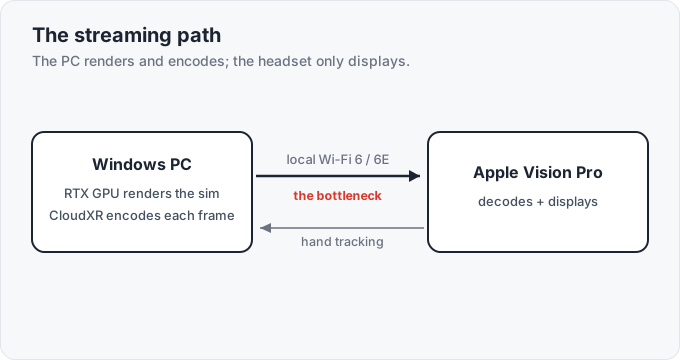
iRacing runs on the Apple Vision Pro through iRacing Connect, a free app iRacing announced in mid-May 2026. The headset does not run the sim. Your Windows PC still renders iRacing on an NVIDIA RTX GPU and streams the video and audio to the Vision Pro over your local network using NVIDIA CloudXR. Think of the headset as a wireless display with hand tracking, not a computer, the same way a Quest 3 streams a PC game rather than running it.
That distinction sets the requirements. The bottleneck is your PC and your network, not the Vision Pro.
What you need: a Windows RTX PC does the rendering
Section titled “What you need: a Windows RTX PC does the rendering”| Requirement | What to check |
|---|---|
| Headset | Apple Vision Pro on visionOS 26.4 or later |
| App | iRacing Connect from the Vision Pro App Store (free) |
| PC | Windows 11 64-bit meeting iRacing’s “high-end” spec |
| GPU | RTX 4070 Ti+ or RTX 5070 Ti+, NVIDIA driver 580+ |
| iRacing | Active subscription |
| Network | Both devices on the same local network |
| Wi-Fi | Wi-Fi 6/6E, 5 GHz or 6 GHz, ~1000 Mbps+ throughput |
| PC link | Wired Gigabit Ethernet to the router preferred |
Confirm your NVIDIA driver version in Windows with:
nvidia-smi --query-gpu=name,driver_version --format=csvThe GPU must be RTX 40- or 50-series
Section titled “The GPU must be RTX 40- or 50-series”GPU. iRacing’s official requirement is an RTX 4070 Ti or 5070 Ti and up. The foveated streaming path only runs on NVIDIA’s Ada and Blackwell architectures, the RTX 40- and 50-series, so a 30-series card is out regardless of raw power. A 3090 won’t work even though it outguns a 4070 Ti.
A 4070 Super sits just below the performance line. It may run, but you’re outside the supported spec, and it’s the first thing iRacing will point to if the stream struggles. CloudXR also encodes every frame on the GPU before sending it, so the card renders the race and encodes the video at the same time. That double duty is where the demand for headroom comes from.
Windows version. iRacing’s current requirements list Windows 11 64-bit as supported and recommend moving off Windows 10. NVIDIA’s R580 drivers do install on Windows 10, so a Windows 10 box can work, but for a brand-new CloudXR path Windows 11 is the safer target.
The Mac. iRacing still lists macOS as unsupported, so an M-series MacBook or Mac Studio renders nothing. iRacing Connect streams from a Windows gaming PC only.
Setup: update both devices, go Private, allow the firewall
Section titled “Setup: update both devices, go Private, allow the firewall”- Update the PC. Update iRacing, install NVIDIA driver 580+, then reboot.
- Update the Vision Pro. On the headset, open Settings > General > Software Update, install visionOS 26.4+, then install iRacing Connect from the App Store.
- Match the network. Put the Vision Pro on 5 GHz or 6 GHz Wi-Fi and the PC on wired Gigabit Ethernet if you can. For the first test, avoid guest Wi-Fi, client isolation, mesh-node weirdness, VPNs, and separate VLANs, which all break device discovery.
- Go Private. Set the Windows network profile to Private under Settings > Network & Internet > Wi-Fi/Ethernet > Properties > Network profile type > Private. Public mode blocks the headset from finding the PC.
- Allow the firewall prompts. When Windows asks about iRacing/CloudXR access, choose Allow. If you already clicked Cancel or never saw a prompt, add inbound rules for
iRacingUI.exeandCloudXrService.exe, and open port 55000 on both TCP and UDP. - Open the iRacing UI. On the PC, use the display-mode drop-down in the upper-right and choose CloudXR. Join a test session and launch the simulator.
- Open iRacing Connect. On the Vision Pro, open the app, select your PC, and follow the on-screen calibration. After it connects, you drive through the desktop mirror window as usual.
- Calibrate the rig. The app uses passthrough to line your real wheel and hands up with the virtual cockpit. Keep the room well lit, and take off gloves, watches, and wrist coverings, which hand tracking loses. Grip tape on the wheel rim can also confuse it.
- Enable foveated rendering. It is off by default. In the sim, open Graphics Settings > Display > VR > VR Mode and turn the foveated rendering option on. It renders full detail only where your eyes are looking, so it buys back the GPU and network headroom foveated streaming needs.
- Use the Digital Crown. Twist it to dial transparency and immersion in and out. With hand tracking on, centering happens during calibration; without it, hold the Crown to recenter.
If it sees the PC but won’t connect, it’s the firewall
Section titled “If it sees the PC but won’t connect, it’s the firewall”Early users are reporting a loop where the PC appears, “Connecting” runs, and it drops back to the first screen. iRacing’s troubleshooting points first at firewall and network restrictions. Work down this list in order:
- Confirm both devices are on the same subnet, not guest Wi-Fi.
- Set the Windows network profile to Private.
- Allow inbound rules for iRacingUI and cloudxrservice.
- Open port 55000 on TCP and UDP.
- Uncheck Windows Firewall’s “block all incoming connections” for the Private profile.
- Temporarily disable third-party antivirus, firewall, and VPN software.
- Reboot the PC, router, and Vision Pro.
- Relaunch the iRacing UI as Administrator once, then try CloudXR again.
Community reports also blame OpenXR Toolkit, runtime switching, and third-party antivirus, with running the iRacing UI as Administrator as a common fix. Those are anecdotal, not official.
If it stutters or lags, the network is the bottleneck
Section titled “If it stutters or lags, the network is the bottleneck”Treat the network as the first suspect. iRacing says high latency, choppiness, and image artifacts almost always mean the local network is the bottleneck, not the GPU. The best layout is the PC wired to the router, the Vision Pro on 5 GHz or 6 GHz, and the router in the same room. Add a dedicated VR router if your home network is busy with other traffic.
One quirk: the Vision Pro does not support Wi-Fi 7. A strong Wi-Fi 7 router can still help thanks to a better chipset and radios, but the headset itself tops out at Wi-Fi 6E.
Early App Store reviews are mixed: one racer called setup easy, others flagged no resolution adjustment, some latency, and troubleshooting friction. That tracks for a brand-new wireless CloudXR implementation.
A realistic first session: solo, daylight, low graphics
Section titled “A realistic first session: solo, daylight, low graphics”If your PC is below the clean supported spec, say a 4070 Super or Windows 10, update drivers and set up the firewall correctly first, then try it, but expect to be off the supported path. The most supportable build looks like:
- Windows 11
- RTX 4070 Ti / 4070 Ti Super / 4080 / 4080 Super / 4090, or RTX 5070 Ti and up
- NVIDIA driver 580+
- PC wired by Gigabit Ethernet
- Vision Pro on same-room 5 GHz/6 GHz Wi-Fi
- visionOS 26.4+
For the first test, run a solo session in daylight, low-to-medium graphics, no rain, small or empty field. Once the stream holds steady, raise the graphics settings one step at a time. The Vision Pro is the most expensive way into VR sim racing by a wide margin. If you’re choosing a headset rather than streaming one you already own, start with the VR headset guide and check your PC against the iRacing system requirements first.
Frequently asked questions
Can you run iRacing on an Apple Vision Pro?
Yes, through iRacing Connect, iRacing's free, official Vision Pro app announced in mid-May 2026. It does not run iRacing on the headset or on a Mac. A Windows PC with an NVIDIA RTX GPU still renders the sim and streams it to the Vision Pro over your local network using NVIDIA CloudXR. The headset is a wireless display, not the computer.
What do you need for iRacing on Vision Pro?
A Vision Pro on visionOS 26.4 or later, the iRacing Connect app, an active iRacing subscription, and a Windows PC meeting iRacing's high-end spec, officially an RTX 4070 Ti / 5070 Ti or better on NVIDIA driver 580+. Both devices must sit on the same local network, ideally with the PC wired by Gigabit Ethernet and the headset on 5 GHz or 6 GHz Wi-Fi 6/6E.
Does iRacing Connect work on a Mac?
No. The Mac cannot host iRacing: iRacing's system requirements still list macOS as unsupported, so a MacBook or Mac Studio renders nothing. iRacing Connect on the Vision Pro only streams from a Windows gaming PC with an NVIDIA RTX card.
Why does iRacing Connect see my PC but won't connect?
It is almost always firewall or network restriction. Set the Windows network profile to Private, allow inbound rules for iRacingUI.exe and CloudXrService.exe, open port 55000 on TCP and UDP, and make sure both devices are on the same subnet, not guest Wi-Fi or a separate VLAN. Reboot the PC, router, and headset, then relaunch the iRacing UI as Administrator once.